
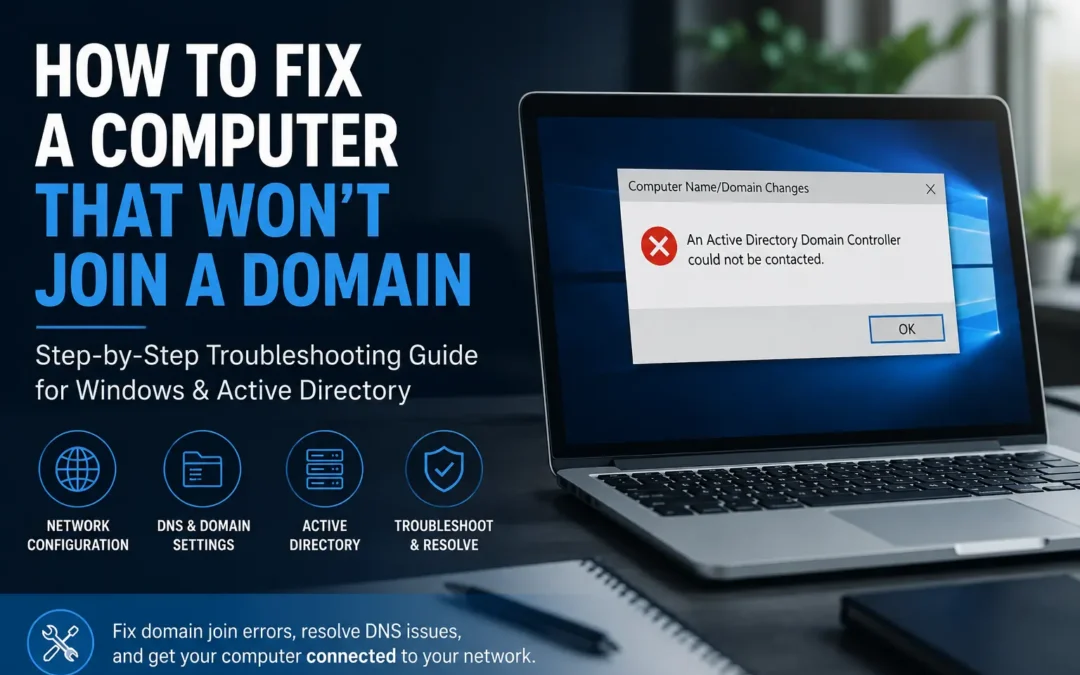
When a Windows device joins an Active Directory domain, it must communicate directly with a Domain Controller (DC). The Domain Controller handles authentication, directory services, and DNS records required during the join process.
The most common reason domain joins fail is incorrect DNS configuration.
Even if the computer has internet access, Windows may still be unable to locate the Domain Controller if DNS is pointing to the wrong server.
In Active Directory environments, DNS is critical because Windows relies on DNS SRV records to discover:
- Domain Controllers
- Authentication services
- Kerberos services
- Active Directory resources
Public DNS servers such as Google DNS or Cloudflare DNS cannot resolve these internal Active Directory records.
Want to see more content like this? Add us as a Preferred Source on Google to see more of our articles when you search.
Step 1: Find the Domain Controller IP Address
Before making changes, identify the IP address of the Domain Controller.
You can usually find this information from:
- Your server administrator
- The Domain Controller itself
- Another computer already connected to the domain
On a working domain-connected computer:
- Open Command Prompt
- Run:
ipconfig /all- Locate the DNS Servers entry
In many business networks, the DNS server listed is also the Domain Controller.
Write down the IP address because it will be needed later.
Step 2: Disable IPv6 Temporarily
In some environments, IPv6 can interfere with domain communication if the network is not fully configured for IPv6 support.
To disable IPv6:
- Open:
- Control Panel
- Network and Sharing Center
- Change Adapter Settings
- Right-click the active network adapter
- Select:
- Properties
- Uncheck:
- Internet Protocol Version 6 (TCP/IPv6)
This change is usually temporary and helps eliminate protocol conflicts during troubleshooting.
Step 3: Configure a Static IPv4 Address
Next, manually configure the network adapter with a valid IPv4 address.
To configure IPv4:
- Open adapter properties
- Select:
- Internet Protocol Version 4 (TCP/IPv4)
- Click:
- Properties
- Choose:
- Use the following IP address
Enter:
- A valid IP address for the network
- Correct subnet mask
- Correct default gateway
Example:
IP Address: 192.168.1.50
Subnet Mask: 255.255.255.0
Default Gateway: 192.168.1.1
Use values appropriate for your environment.
Step 4: Set DNS to the Domain Controller
This is the most important step.
Under DNS settings, configure the computer to use only the Domain Controller as its DNS server.
Example:
Preferred DNS Server: 192.168.1.10Do not use:
- Google DNS (8.8.8.8)
- Cloudflare DNS (1.1.1.1)
- ISP DNS servers
- Public secondary DNS servers
Using public DNS servers prevents Windows from locating Active Directory services correctly.
Even if internet browsing works normally, domain joins can still fail when DNS is incorrect.
Step 5: Attempt the Domain Join Again
After updating the network settings:
- Open:
- System Properties
- Computer Name
- Change
- Select:
- Domain
- Enter your domain name
Example:
company.local- Enter domain administrator credentials when prompted
If the configuration is correct, Windows should successfully join the domain and display:
Welcome to the domain.Restart the computer if prompted.
Step 6: Test Connectivity if the Join Still Fails
If the computer still cannot join the domain, verify the following:
- DNS points only to the Domain Controller
- The IP address is valid
- The subnet mask is correct
- The gateway is correct
- The Domain Controller is online
- The computer can communicate with the DC
- The domain name was entered correctly
You can test communication using:
ping yourdomain.localAnd:
nslookup yourdomain.localIf these commands fail, DNS is still the problem.
Step 7: Return Settings to Automatic (Optional)
After the computer successfully joins the domain, you can often switch the adapter settings back to automatic configuration.
Enable:
- Obtain an IP address automatically
- Obtain DNS server address automatically
Many business networks use DHCP to distribute the correct DNS settings automatically.
However, some organizations intentionally configure systems to use the Domain Controller permanently for DNS resolution.
Common Domain Join Mistakes
Using Public DNS Servers
Public DNS servers cannot resolve Active Directory records required for authentication and domain discovery.
Mixing Internal and Public DNS
Using the Domain Controller as the primary DNS server and a public DNS server as secondary DNS can create inconsistent behavior.
Incorrect Time Settings
Large time differences between the client computer and Domain Controller can break Kerberos authentication.
VPN or Virtual Network Adapters
VPN software and unused virtual adapters can interfere with domain communication.
Firewall Restrictions
Third-party firewalls may block ports required for Active Directory services.
Why DNS Matters in Active Directory
Active Directory depends heavily on DNS service records known as SRV records.
When joining a domain, Windows asks DNS questions such as:
- Which server is the Domain Controller?
- Which server handles authentication?
- Which services are available for this domain?
Only the Domain Controller can correctly answer these requests.
That is why properly configured DNS resolves most domain join problems immediately.
Additional Resources
- <a href="https://learn.microsoft.com/en-us/windows-server/identity/ad-ds/get-started/virtual-dc/active-directory-domain-services-overview" target="_blank" rel="noopener">Microsoft Active Directory Overview</a>
- <a href="https://learn.microsoft.com/en-us/troubleshoot/windows-server/networking/configure-dns-dynamic-updates-windows-server-2003" target="_blank" rel="noopener">Microsoft DNS Configuration Best Practices</a>
- <a href="https://learn.microsoft.com/en-us/windows-server/identity/ad-ds/manage/troubleshoot/troubleshoot-domain-controller-deployment" target="_blank" rel="noopener">Troubleshooting Domain Controller Issues</a>
- <a href="https://learn.microsoft.com/en-us/windows-server/administration/windows-commands/nslookup" target="_blank" rel="noopener">How to Use NSLookup in Windows</a>
- <a href="https://learn.microsoft.com/en-us/windows-server/administration/windows-commands/ping" target="_blank" rel="noopener">Using Ping for Network Troubleshooting</a>
Final Thoughts
Most Windows domain join failures are caused by incorrect DNS settings rather than internet connectivity problems.
If a computer cannot join the domain, start by:
- Disabling IPv6 temporarily
- Assigning a valid static IPv4 address
- Pointing DNS directly to the Domain Controller
In many cases, these changes resolve the issue immediately and allow the computer to join Active Directory successfully.
Understanding how DNS works within Active Directory environments is one of the most important parts of troubleshooting domain-related network issues.
FAQ: Fixing Domain Join Problems
Why does my computer say the domain could not be contacted?
This usually means the computer cannot communicate with the Domain Controller due to incorrect DNS or network settings.
Can DNS alone prevent a computer from joining a domain?
Yes, incorrect DNS configuration is the most common cause of Active Directory domain join failures.
Should I use Google DNS on a domain network?
No, computers joining an Active Directory domain should use the Domain Controller for DNS resolution.
Why does disabling IPv6 sometimes fix domain join issues?
In partially configured networks, IPv6 can interfere with authentication and DNS communication during the join process.
What command can I use to test domain communication?
You can use ping and nslookup to verify that the computer can locate and communicate with the domain.
Can a firewall block domain joins?
Yes, firewalls can block Active Directory ports required for authentication and communication.
About ITGuys
ITGuys is a Managed IT Support company that has been helping businesses solve technology problems since 2009. We work with companies of all sizes to provide reliable, practical IT solutions that keep teams productive and secure.
Our services include managed IT support, network cabling, office onboarding and offboarding, email migration, IT consulting, wireless networking, infrastructure upgrades, and ongoing technical support for businesses across the United States.
We believe technology should make business easier — not more frustrating. Our goal is to provide straightforward IT guidance that helps businesses avoid downtime, improve reliability, and make smarter technology decisions.
Recent Comments