
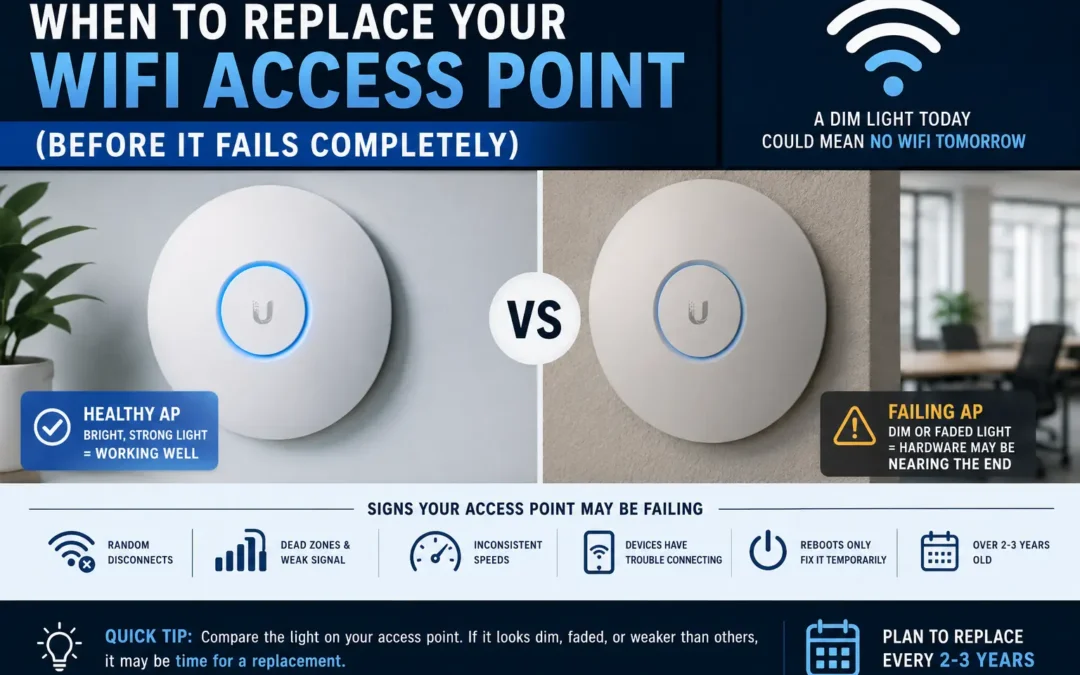
Most people never think about their WiFi access point until the network starts acting strangely.
Connections drop for no obvious reason. Video calls freeze. Certain rooms suddenly lose signal. Streaming becomes inconsistent. In homes and businesses alike, these problems are often blamed on the internet provider first, even when the actual issue is the wireless hardware itself.
One of the simplest ways to tell if a WiFi access point is nearing the end of its life is surprisingly easy:
Check the light.
A bright, healthy status light usually indicates the access point is operating normally. A dull, faded, weak-looking blue light can be an early warning sign that the device is beginning to fail.
In this guide, we’ll explain how to recognize the signs of a dying wireless access point, when to replace it, and what to look for if you’re buying a new one.
Want to see more content like this? Add us as a Preferred Source on Google to see more of our articles when you search.
What Is a WiFi Access Point?
A WiFi access point (AP) is the device that broadcasts wireless internet throughout a building. In homes, this function is often built into the router. In offices, schools, warehouses, and larger homes, separate access points are commonly installed to provide stronger and more reliable coverage.
Access points work constantly. Unlike many electronics that are only used occasionally, WiFi hardware typically runs 24 hours a day, 365 days a year. Over time, heat, electrical wear, and continuous usage begin to affect performance and reliability.
That is why many access points begin showing reliability issues around the 3-year mark, especially in high-use environments.
The Easiest Thing to Check Is the Status Light
One detail people often overlook is the LED status light on the access point itself.
On newer or healthy hardware, the light is usually bright and consistent. On aging units, it can start looking faded, weak, or noticeably dimmer than other access points nearby.
That does not automatically guarantee failure, but in real-world environments it is a surprisingly common warning sign.
A healthy access point will often have:
- A bright, clearly visible LED
- Stable or predictable blinking patterns
- Consistent brightness
An aging or failing access point may show:
- A dim or faded blue light
- Uneven brightness
- Flickering
- Intermittent lighting
- A light that appears much weaker than newer units
If you have multiple access points in the same building, comparing them side-by-side can make the difference obvious. A newer unit often appears noticeably brighter and more responsive than older hardware nearing failure.
While the LED alone is not a perfect diagnostic tool, it is often one of the earliest visual clues that hardware degradation has started.
Common Signs Your WiFi Access Point Is Failing
Most wireless access points do not completely fail overnight. The decline is usually gradual, which is part of what makes the issue difficult to diagnose at first.
1. Random WiFi Disconnects
Devices may suddenly disconnect and reconnect throughout the day. Video calls freeze, streaming buffers, and online gaming becomes unstable.
These issues often happen even when the internet service itself is working correctly.
2. Dead Zones Start Appearing
Areas that previously had strong coverage may suddenly become weak or unusable.
This is especially common in:
- Offices
- Multi-story homes
- Warehouses
- Buildings with many connected devices
3. Speeds Become Inconsistent
You may notice:
- Fast speeds sometimes
- Very slow speeds at other times
- Large fluctuations during the day
This becomes especially noticeable in busy environments where many devices are connected at the same time. Hardware that handled the workload easily a few years ago may begin struggling under normal daily usage.
4. Devices Have Trouble Connecting
Phones, laptops, printers, TVs, and smart home devices may:
- Fail to join the network
- Take a long time to connect
- Randomly ask for the WiFi password again
5. Frequent Reboots Temporarily “Fix” the Problem
If unplugging and restarting the access point temporarily restores performance, the hardware may be deteriorating.
This is one of the most common signs of aging networking equipment.
How Long Do WiFi Access Points Last?
Wireless access points do not have a fixed expiration date, but many begin showing reliability problems somewhere around the 2–3 year range, especially in environments with heavy daily usage.
Some last longer. Others begin having issues earlier than expected depending on heat, workload, and operating conditions.
Heat is one of the biggest contributors to premature hardware aging. Poor airflow, dust buildup, constant heavy usage, and large numbers of connected devices can all shorten the lifespan of wireless equipment over time.
Business environments tend to wear out access points faster than residential environments because the hardware handles more traffic throughout the day.
Troubleshooting Before Replacing Your Access Point
Before replacing the device, it’s worth checking a few common issues first.
Restart the Access Point
A full reboot can sometimes temporarily restore normal operation.
Unplug the unit for 30 seconds before reconnecting power.
Check for Overheating
If the device feels unusually hot, overheating may be affecting performance.
Make sure:
- Air vents are not blocked
- Dust is cleaned away
- The device is not sitting in direct sunlight
Update Firmware
Manufacturers regularly release firmware updates that improve:
- Stability
- Security
- Device compatibility
- Performance
Check the manufacturer’s support page for updates.
Test Another Ethernet Cable
Sometimes the issue is not the access point itself, but the network cable supplying data or power.
Damaged Ethernet cables can create intermittent connectivity problems that mimic hardware failure.
Compare With Another Access Point
If possible, temporarily swap in another unit.
If the problems disappear immediately, the original access point is likely failing.
If you're still stuck, take a glance at our guide Can't Connect to WiFi? 15 Common Solutions!
When You Should Replace Your WiFi Access Point
You should strongly consider replacement if:
- The LED appears dim or abnormal
- You experience repeated disconnects
- Coverage has noticeably weakened
- Devices frequently struggle to connect
- Performance problems keep returning
- The device is over 3 years old
- Reboots only provide temporary improvement
Waiting for complete hardware failure usually creates more frustration than replacing the unit proactively. In business environments especially, unreliable WiFi can quickly turn into a productivity problem.
Recommended Types of Replacement Access Points
Different environments require different solutions.
For Small Homes
Simple consumer WiFi routers or mesh systems are often enough.
Popular options include:
- TP-Link
- ASUS
- NETGEAR
- Eero
For Larger Homes
Mesh WiFi systems help eliminate dead zones by using multiple access points together.
Good mesh options include:
- Google Nest Wifi
- Eero
- Orbi
For Businesses
Business-grade access points are designed for:
- Higher device counts
- Better roaming
- Stronger security
- Centralized management
- Long-term stability
Common business solutions include:
- Ubiquiti
- Cisco
- Aruba Networks
- Ruckus Networks
Helpful Resources for WiFi Troubleshooting
These official resources can help diagnose wireless issues:
- Wi-Fi Alliance: https://www.wi-fi.org/
- Cisco Wireless Networking Support: https://www.cisco.com/c/en/us/support/wireless/index.html
- Ubiquiti Help Center: https://help.ui.com/
- NETGEAR Support: https://www.netgear.com/support/
- TP-Link Support: https://www.tp-link.com/us/support/
- ITGuys Wi-Fi Guide: ITGuys Wi-Fi Guide
Where to Buy Replacement WiFi Access Points
If your current hardware is failing, these are common places to compare models and pricing:
- Amazon WiFi Access Points: https://www.amazon.com/s?k=wifi+access+point
- Best Buy Networking Equipment: https://www.bestbuy.com/site/networking/wireless-networking/abcat0501000.c?id=abcat0501000
- Newegg Wireless Access Points: https://www.newegg.com/Wireless-APs/SubCategory/ID-335
- Ubiquiti Store: https://store.ui.com/
- Cisco Small Business Wireless: https://www.cisco.com/c/en/us/products/wireless/index.html
Final Thoughts
WiFi problems are often blamed on internet providers, but aging wireless hardware is one of the most common causes of unreliable connectivity.
If your access point’s blue light appears noticeably dim, faded, or weaker than normal — especially alongside connectivity issues — it may be time to replace the device before it fails completely.
For both homes and businesses, replacing aging access points proactively can improve:
- Wireless coverage
- Device stability
- Connection speeds
- Video call reliability
- Overall network performance
Sometimes the first clue is also the easiest one to miss: the light on the access point itself.
About ITGuys
ITGuys is a Managed IT Support company that has been helping businesses solve technology problems since 2009. We work with companies of all sizes to provide reliable, practical IT solutions that keep teams productive and secure.
Our services include managed IT support, network cabling, office onboarding and offboarding, email migration, IT consulting, wireless networking, infrastructure upgrades, and ongoing technical support for businesses across the United States.
We believe technology should make business easier — not more frustrating. Our goal is to provide straightforward IT guidance that helps businesses avoid downtime, improve reliability, and make smarter technology decisions.
Recent Comments